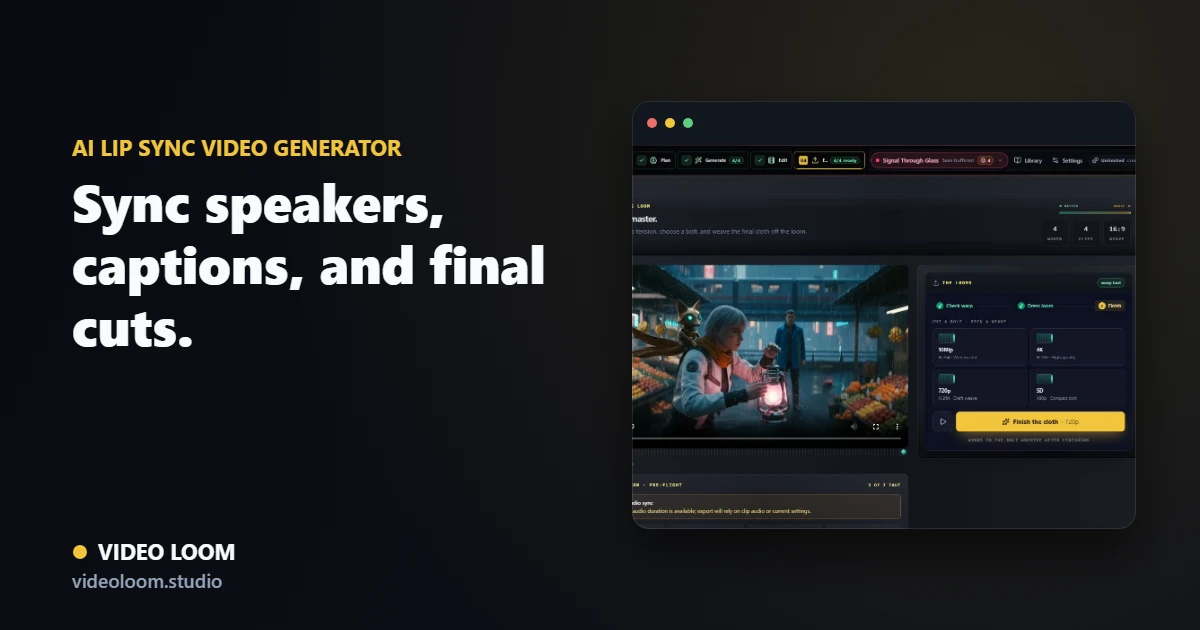
1. Start from a source clip
Bring in the video you want to re-sync — a generated take, an uploaded performance, or a presenter clip — and assign the speaker so identity stays attached to the scene.
- Use a generated or uploaded source video take.
- Assign speaker identity from bound cast or voice profiles.
- Keep lineage back to the original take for review.
2. Drive the sync with new audio
Feed the new line as uploaded audio or typed script routed through a configured text-to-speech voice, then generate the lip-synced pass.
- Uploaded audio or configured TTS as the driver.
- Caption cues seeded from the same line.
- Localization notes stay attached for dubbed passes.
3. Review sync and export
Check mouth movement and caption timing on the same timeline as the rest of the project, then export the finished, re-synced cut.
- Review mouth-sync accuracy before export.
- Timeline assembly alongside other scenes.
- Export-ready cuts for social, explainer, and localized delivery.