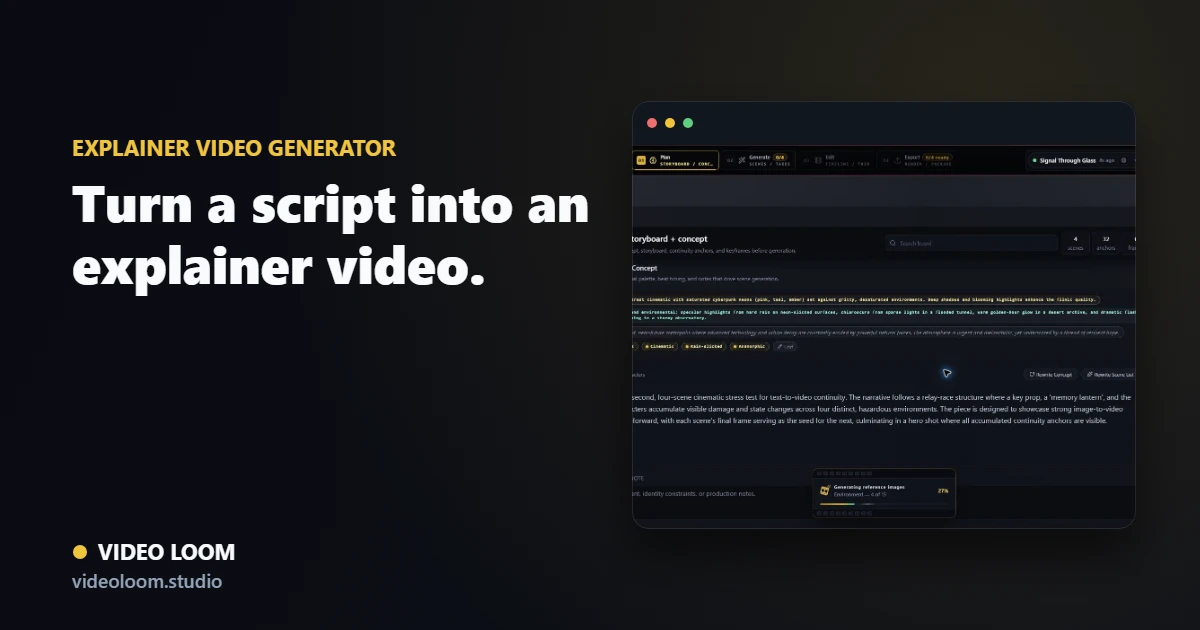
An explainer video needs a clear message, readable pacing, and a finished edit. Here is how to turn a script or brief into planned AI video scenes with voiceover, captions, continuity, and a synced export.
By Video Loom ·
1. Start with one message
Write the core promise, audience, and call to action before generating visuals. A short brief gives the explainer a job, so each scene supports the same outcome instead of becoming a loose montage.
Define the audience and product promise.
Write the call to action before the scene plan.
Keep the first cut short enough to finish and review.
2. Turn the script into scenes
Break the script into timed beats with a shot prompt, camera note, caption cue, and reference context for each scene. Reviewing that plan before generation keeps provider spend focused.
Split narration into short visual beats.
Attach source media, product shots, or style references.
Review shot prompts before generating takes.
3. Add voiceover, captions, and export
Generate or import voiceover, align captions to the audio, compare generated takes, and finish the explainer on a timeline with the source media and final export settings intact.
Keep voiceover and captions tied to the scene timing.
Route shots by quality, speed, and cost.
Export a synced explainer cut from one project.
Try the workflow
Plan your next AI video in Video Loom.
Turn the guide into a project with scene planning, provider routing, continuity, review, and export in one workspace.